3D Model in xLights, what other setup before I start?

slw2206

Apprentice elf
Joined
Jan 8, 2026
Messages
59
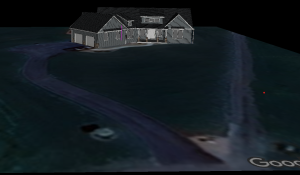
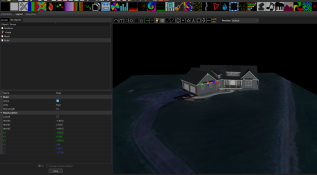
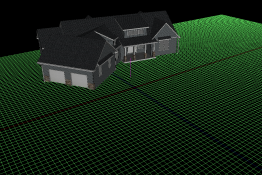
I've been tinkering with xLights for a while now, but yesterday I was finally able to get my .obj for the house and insert it on the grid.

Looking for some feedback from you guys on what else would you setup before you start importing props and setting up sequences? I don't have any trees in my front yard, but there are 2 driveways (one on the left that goes to the garage, another on the right that angles away and runs to my barn+stable). Is there anything else you would recommend I do before populating the canvas?

Thanks guys!
1773665739258.png
 
I'll have to see how I can align that and make the image happen. I could do this stuff later, but I've got time to tinker around with this stuff now. Will see if I can import a Maps pic (and since I'm out in the country, if it's even remotely current ;) )
 
MMk, ruler set on the dormer over the windows which is exactly 14 feet.

Then I clicked reset and this is the resulting view.

1773765445781.png
 
No excuses left, start putting on blinky.

Haha never any excuses. Now I can start mapping lights in somewhat realistic dimensions and envision what the show may look like.

I just had my 2nd batch of 5,000 lights come today, so the total is at 10,000. That should be enough for Year 1 after I add a Mega Tree (because light shows aren't real shows unless a 20' tree is involved).
 
I can tell you the answer to that now... as you've noticed it's only March
 
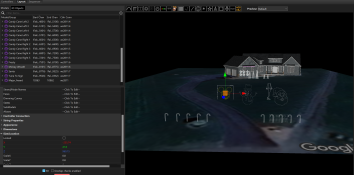
So except for the peace stakes that I need to make models for, here's what we've got so far. These props aren't scaled properly or in their final home, but I wanted to get everything on the canvas before I start moving all the puzzle pieces around.
 

Attachments

  • Screenshot 2026-03-17 195955.png
    Screenshot 2026-03-17 195955.png
    1.3 MB · Views: 12
Nice. As @merryoncherry said, putting the dimensions in on the props is easy now (as you have the ruler setup), do this on the properties window under Dimensions.
I see from your screenshot you have 2 sets of candy canes, that face different directions. Did you horizontally flip them in the model data or did you just rotate them in 3d? The correct way is to go into the model data, right click and flip horizontal.
 
Already done. I noticed that if I change the dimensions on the first of a set of props and then select all of them, right click, and match them to size... it auto-updates all the props to match. That made changing the candy canes very easy.

@Cranzy - I flipped them by using 180 degree on the Y axis in the model data :)
 
Back
Top