Render Issue

oxytousc

Apprentice elf
Joined
Jan 10, 2024
Messages
92
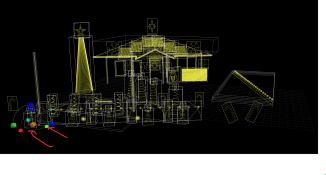
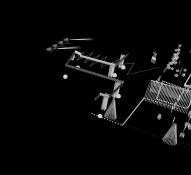
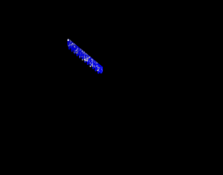
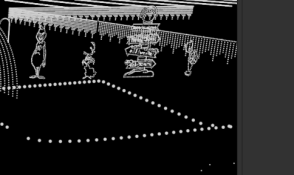
Wondering if anyone can point me towards a fix for this render issue I’m having with my icicles. I’ve got a 3d layout. My show is all new this year. It’s walk through this year. These icicles aren’t rendering correctly and I think it has to be a result of rendering view. But not sure how to fix it.

Thanks!
 
A regular 3D fault.
xLights renders in 2D from a particular angle, by default, the 2D default view.

In this case, it's rendering from the left hand side - and treating the right hand icicles all belinging to the same "grid cell" so to speak.
In 3D mode, create an angle that shows all the lights - eg your camera angle.
Right click - save as Viewpoint
Then on the effect, you can say "Per Preview" and select that camera angle.
 
You are correct. If you do "per preview" with a 2D camera, you will get this result on the icicles that are perpendicular to the view.
Possible solutions:
1. Go through all the effects and change them to another camera, or not do "per preview" (maybe use "default")
2. Do what I do, rotate the layout. (https://merryoncherry.org/2022/11/1...and-handling-multiple-holidays-on-one-layout/)
I feel like the rotation makes sense. But I haven't the foggiest on how to start to apply the python script to my layout. Any resources there?
 
You can do it in the front-end as well.

Go to layout, press Control-A to select all.
Click the brown square until you get the red/green/blue "semicircle controls"
Then use the green one, click and drag to rotate
1765422307674.png
 
A regular 3D fault.
xLights renders in 2D from a particular angle, by default, the 2D default view.

In this case, it's rendering from the left hand side - and treating the right hand icicles all belinging to the same "grid cell" so to speak.
In 3D mode, create an angle that shows all the lights - eg your camera angle.
Right click - save as Viewpoint
Then on the effect, you can say "Per Preview" and select that camera angle.
Yea, I knew it had to be the camera angle. That said, I just tried moving it and
 
They seem to render correctly if I do Single Line...am I understanding correctly that I can render each model/effect differently?
 
Every effect can have a different render method, which means you can use them on different layers etc - it's how some of the very creative displays are put together.
 
Every effect can have a different render method, which means you can use them on different layers etc - it's how some of the very creative displays are put together.
What happens if I have the effect on a group vs an individual model? Do I need to put it on the model?
 
Model will render differently than a group, depending on the "Default" vs "Per Preview" - a group's default is per-preview. A model depends on the model.
If you put the effect directly on the model you might have more success.
 
Back
Top