Xlights 3D model query

PixelProject

New elf
Joined
Jun 1, 2026
Messages
14
Hello Fellow Enthusiasts,

Been relatively new to the hobby I have only played in xlights 2D until this past week as I start looking at next years setup, upon trying to place a window prop to the layout it (lights) drops a tiny prop to the front of the layout and doesn't appear to offer a resize / drag and drop function as it did in 2D, is this purely me not understanding differences in 2D v 3D setups or a potential bug in the current edition of the software, I did check so know bugs but its not there.

Thanks in advance.

James
 
When you place a 3d model and click on it, there are 3 coloured lines come up, one each for the X, Y, Z planes.
There is also an orange box in the middle, which changes the mode.

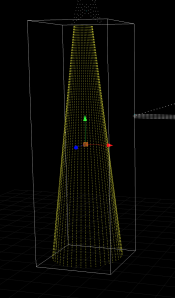
Mode 1 is move - allows the drag handles to relocate the object (designated by arrows on the end of the handles)
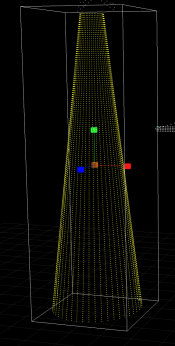
Mode 2 is resize - allows the drag handles to expand and contract the object (designated by squares on the end of the handles)
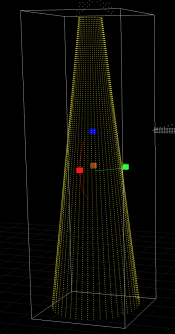
Mode 3 is rotate - allows the drag handles to rotate on the axis. (designated by squares and rotational axis lines)

By clicking and dragging on the coloured arrows or squares, you can adjust the object appropriately.

Move mode:
1792637213828.png

Resize mode:
1792637222494.png

Rotate mode
1792637229242.png
 
Yes, 3D is a little harder. There is a box (orange usually) in the middle of your prop and if you click it it switches between move, scale, and rotate.
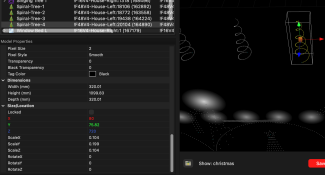
However, my suggestion is to start by placing a ruler object in your layout, then set the dimensions of the props in the property grid. They'll all be consistent then. I resort to the property grid quite a bit when editing my 3D layout.
 
The Ruler is a lifesaver.

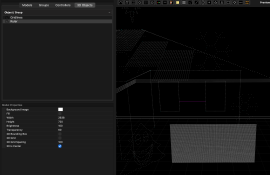
I have mine placed between these two windows (purple line)
1792637431482.png

This has a measurement of 2638, meaning it's 2638 millimetres (yes, I measured it all in MM, but you can use metres, inches, whatever suits you, it's an arbitrary number to represent that distance)

Then, when you place a prop, you have the "Real" dimensions calculated out - which you can type in:
So this spiral tree, for example, is 1.1m tall and 32cm in diameter (all measured in millimetres to match the ruler).

1792637578976.png
 
Back
Top