HElppp with dmx on f16v3

rgabr0

Puzzlers elf
Joined
Jan 5, 2026
Messages
24
Location
Brisbane
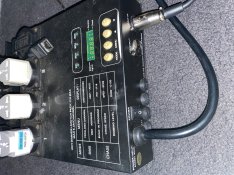
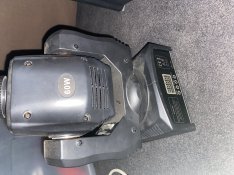
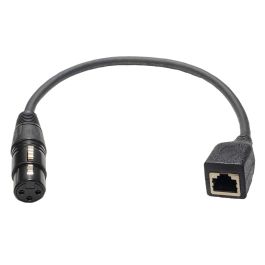
i have these 60w moving heads i want to control using my RJ45 to xlr adapter i put into the first dmx RJ45 port on my falcon but i have no idea what to do to control these nor how to use i do also have a dmx dimmer i could use to test if its working but am i complete beginner with dmx and are very overwhemled
 

Attachments
  • image.jpg
    image.jpg
    944.3 KB · Views: 7
  • image.jpg
    image.jpg
    796 KB · Views: 9
  • image.jpg
    image.jpg
    1.4 MB · Views: 8
  • image.jpg
    image.jpg
    1.2 MB · Views: 8
Last edited:

This is a very helpful tool, I have no experience with DMX but have seen this tool used at minis and is very easy to help learn what channels do what with specific DMX devices.
 
Highly recommend finding a Youtube video of what to do, if you learn that way. But here's an outline of the steps to take:
1. First see if your head is in the download library, if it is add it and go to step 4, but if it is not, proceed to step 2
2. Add a DMX "Moving Head Adv" model to your layout.
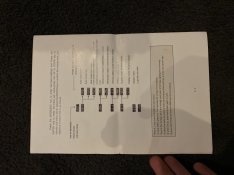
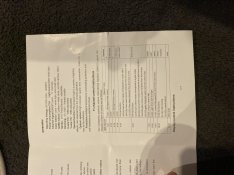
3. Set all the settings as best you can, 11 channels, and their purposes according to first page you screenshotted, for pan motor, tilt motor, etc. (Getting these perfect is not super critical at this stage, as they only affect what you see on the screen.)
4. Attach the head to the F16 serial port in the visualizer (or controller connection properties), and upload output to the controller so it is configured. Verify in web page.
5. Connect the head to the F16. Make sure the jumpers are set to DMX, not LoR, and that you have the right DMX dongle (cheap ones sold in pairs are often wired incorrectly). Use a multimeter to test it against the standard if you are not sure how it is wired... or if you have trouble later, hack up your own.
6. Make sure the channel number set in the fixture's control panel matches what you told xlights is the start channel.
7. Start a sequence, add a DMX effect to the moving head.
8. Turn on "output to lights" and slide the sliders around, see if the head does anything. Now ... it may be erratic. There are many reports that "output to lights" in xLights doesn't deliver consistent signal timings and therefore doesn't work as well as playing the sequence with your player ... but this should get you started.
9. Refine anything above to make the screen model look like the real thing, set the limits, etc.

Troubleshooting this is difficult. The problem is, there is very little way to tell how far the correct data made it. Some people use da tester, f-test, other DMX boards, etc., or even throw it on the logic analyzer, but the best advice is to just follow all the steps faithfully.
 
Back
Top