New xModel Design App: Aussie Pixel Studio (browser-based xModel editor)

BooY

Topper Man
Joined
Dec 29, 2019
Messages
62
Location
Jimboomba
Intro
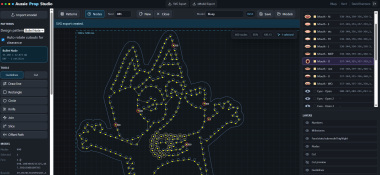
Hi everyone, I’ve been working on a new browser-based xModel design app called Aussie Pixel Studio and wanted to share it here. It’s meant to make pixel prop layout and wiring visualization easier, especially for folks who want a more visual CAD-style workflow than the usual spreadsheet/grid-based xModel editors.


What it is

Aussie Pixel Studio aims to be a lightweight web app for designing xModel pixel props. It focuses on:
  • visual node placement
  • wire/connectivity layout –(only basic at the moment)
  • xModel import/export compatibility
The goal is to feel more like a vector/CAD Designer than a spreadsheet editor / grid based editor.


How it works

  1. Open the app in your browser
  2. Import a background image or several as reference
  3. Import an existing .xmodel file to modify or start a new prop design
  4. Use the canvas tools to place pixels/nodes and draw pathing
  5. Use the Pattern tools to lay down nodes across the drawn paths etc
  6. Adjust spacing, node order, and visual layout
  7. Export the finished design back to .xmodel
It also supports importing SVG backdrops so you can trace outlines or existing prop shapes while you design.


What’s working now

  • Core visual layout and editing
  • Pixel node placement
  • Node Spacing both too close and to far warnings (adjustable)
  • Wiring / connection visualization including warnings for wiring jump maybe required (default is 60mm)
  • Faces / States / Sub Models with visualization and default colours where xLights allows it
  • Milestone Nodes – adjustable highlight Nodes every ## for wiring/counting when pushing
  • xModel import/export
  • Zoom, pan, and selection tools
  • Backdrop import flow
  • Visualization of the cut holes off pre-defined bullet pixel hole
  • xModel Export, which tries to minimise the xLights grid size required to maintain design details
  • Ability to save model, and update later as a Rev up vs just overriding completely

What is still “in progress”

Some features are currently locked as work-in-progress while I decide the best user-facing workflow. That means:

  • advanced tools are visible but not yet fully functional
  • Multiple node templates to possible swap to seeds/other pixel shapes
  • the UI for some workflows is still being finalized
  • I’m still deciding how to expose certain options without making the app too complex
  • Wiring Currently takes the shorted path, which means on some alternating node patterns the wiring is overlapped.
So if you see a feature marked locked or “in progress,” it’s not ready yet.


What I’m looking for

Feedback would be especially helpful on:

  • whether this feels easier than existing xModel editors
  • any bugs, issues found.
  • any must-have workflow for common prop types

Final note

This is an early app, but it’s already usable for basic designs and xModel export. I’m iterating on the locked features and would love input from the community for anything I've missed, or lacking.

Link
https://aussiepropstudio.daveshotit.com/


Screenshots
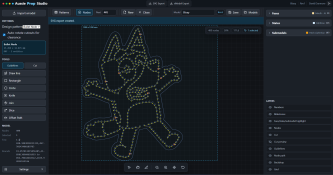
1780518410273.png

1780518681226.png
 
I have "broken" the app already :D
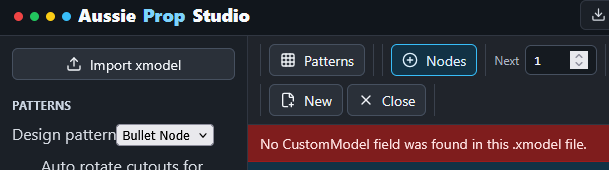
I went to edit a custom prop that I have been working on and which I saved a copy of a few days ago. When I went to edit this prop to have a play with it via your app I got an error which I pasted a screenshot of below. I know it's a custom model as @Bernie_H and I created the model and submodels. When I opened the xmodel I noticed that instead of the CustomModel that the app appears to be looking for there was an "exported". I could probably just edit the xmodel with Notepad++ and get it going but it'd be nice if that model type was allowed.
I'd dearly love a video of the app in use as a heads up as I'd be keen to use it and have some idea of what I'm doing.

1780539133429.png
1780539165597.png
 
Hey Al,
Give it a try now, i didn't realise xlights updated the custom model, i've run an update and it should accept the newer style now.
Prolly added a few more bugs in in the process but should open
I have "broken" the app already :D
I went to edit a custom prop that I have been working on and which I saved a copy of a few days ago. When I went to edit this prop to have a play with it via your app I got an error which I pasted a screenshot of below. I know it's a custom model as @Bernie_H and I created the model and submodels. When I opened the xmodel I noticed that instead of the CustomModel that the app appears to be looking for there was an "exported". I could probably just edit the xmodel with Notepad++ and get it going but it'd be nice if that model type was allowed.
I'd dearly love a video of the app in use as a heads up as I'd be keen to use it and have some idea of what I'm doing.

View attachment 31236
View attachment 31237
 
Hey Al,
Give it a try now, i didn't realise xlights updated the custom model, i've run an update and it should accept the newer style now.
Prolly added a few more bugs in in the process but should open
That fixes the ability to bring in an exported xmodel :)
 
@AHH

Here is a quick run through everything, note the vid has no sound, I'm at work and did a quick on the side run through.
There are a few bugs present in the run through that i need to fix up, and I apologies that the screen grab didnt get the pop up windows when doing stuff.


View: https://youtu.be/SDa_fvqOn7I


Main Bugs present in vid,
• the drawing tool likes to pre attach itself to a location sometimes when you 1st select it.
• The offset tool doesnt draw to the layer selected, it draws to the same layer as to which its source is from.
• cannot change layer sources after the fact, if it was drawn on the cut layer and was meant to be the guidelines then too bad.
• renumbering is only infancy needs work for to make it usable for proper renumbering / rejigging layout
 
  • Appreciate
Reactions: AAH
Basic Key list as well,
Drawing line - Select layer Guideline or Cut
• LMB Click to draw straight lines
• LMB Click and drag to draw curved lines (LMB click to start, and go to end and click/hold/drag to align curve.
• Double click to end shape

• Circle and Rectangle, Click and Drag, Hold SHIFT to maintain square/round aspect ratio.
• Knife - same as trim in CAD, click and drag across line to remove intersection between 2 points
• Join - Click 2 Vertex points to join them
• Slice doesnt really work atm
• Offset Path - creates offset of shape

Patterns
• Pattern on Path - select open shape, set pixel count, or space between nodes. Extent limits the extent of where the pattern will fill out to, this is WIP, it works but there is no visual representation of where the extent will go to before you commit. will eventually be like a snake on the line that you can drag to where the last node will be placed. so that joining places can be created for node segments.
• Circle and Grid patterns currently just place the circle or grid in the centre of the canvas - this is a WIP and will be updated to allow point of start for center of circle / grid placement, and like the snake, an arrow selectable item, to drag radius out for circle, and a up/down and a left/right for the grid
 
Back
Top